Guides › Boxridge Quote

How to use Boxridge Quote
Boxridge Quote does one job: it gets your estimates written, sent and signed.
1Install and set up
- Click Download free 30-day trial on the Boxridge Quote page and run BoxridgeQuote-Setup. It installs for your user only: no admin password and no Windows prompt. Windows 10 and 11 (64-bit).
- Every feature works for 30 days with no account and no credit card. After that your estimates stay open to view, print and back up, and writing or changing estimates asks for a license key.
- When you buy, your license key is shown right after payment, emailed to you and kept in your account. In Boxridge Quote choose Help → Enter License Key, paste the whole block from -----BEGIN to END----- (or open the .key file) and click Activate. The PC needs the internet that first time; one license covers 3 of your PCs, and Remove License in the app (or My software on this site) frees a PC. After that it works offline and never expires.
- The first time it opens on Settings: enter your business name, email, phone, address and logo. They appear on every estimate.
- Set your sales tax rate, the estimate number to start from, how many days an estimate is valid, and the terms printed at the bottom.
2Build your price list
- Estimates → Price List… (or File → Price List…): add the work and materials you charge for again and again, with the unit (hour, room, each) and price, and whether it is taxable.
- Prices you change later are used on new estimates; estimates you already sent keep their own prices.
3Write an estimate
- Estimates → + New Estimate (Ctrl+N). Pick the customer, or + New Customer for someone new, and type the job and site address.
- Add the work: Add from Price List…, + Add Line to type one, or Materials List… to add up materials.
- Set Valid until, a Deposit to start (a % or a $ amount) if you want one, and check the terms.
- Preview shows exactly what your client will see; Save as PDF or Print from there.

4Get it signed
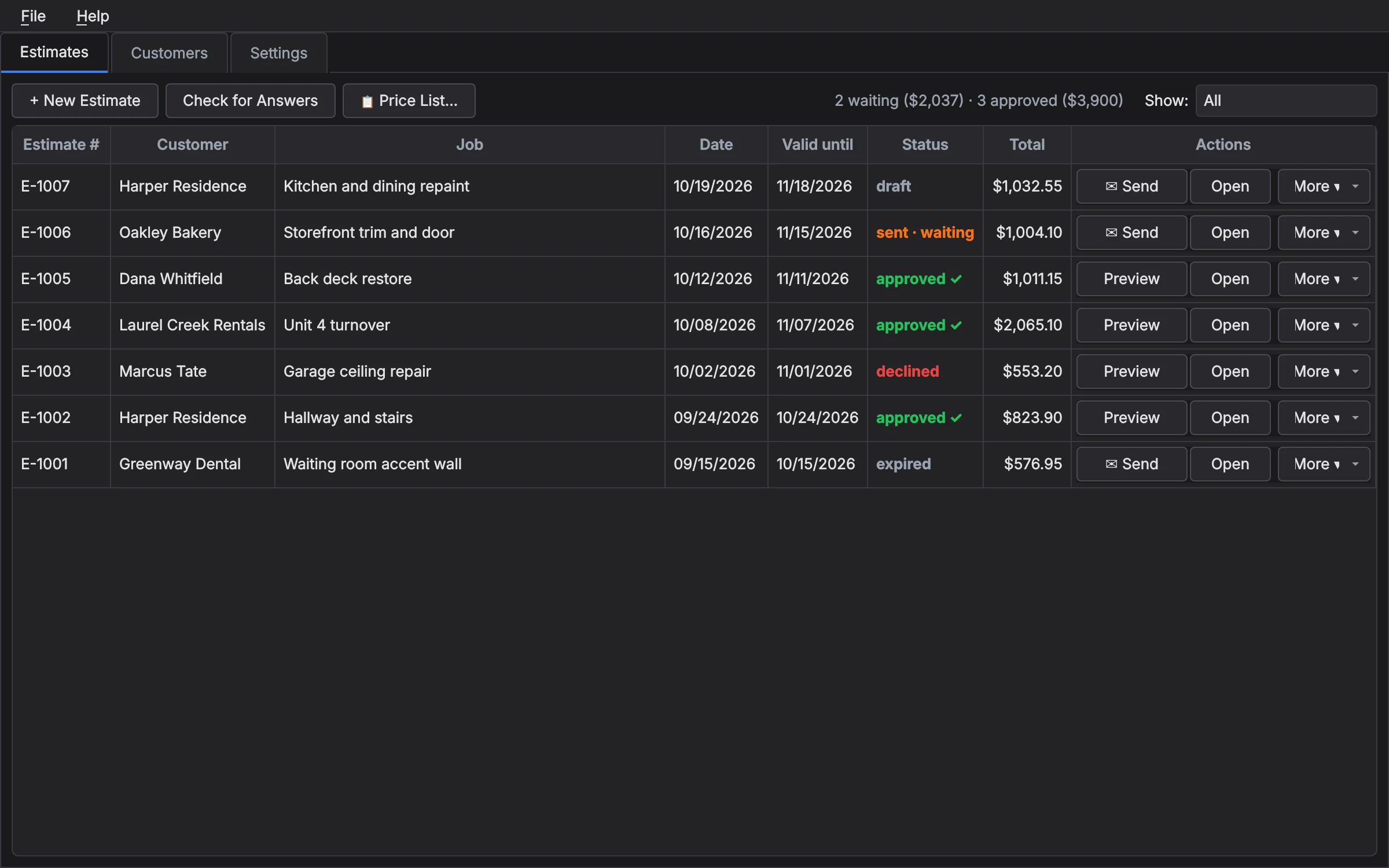
- Send to Client… emails the estimate as a PDF with a private link. Your client opens it on any phone or computer, signs with a finger or the mouse (or types their name), and taps Approve, or declines with a note.
- You get an email the moment they answer. Open the Estimates tab (or click Check for Answers) and the answer and signature come in.
- With the client in front of you? Sign in Person hands them your screen to sign.
- The Estimates tab shows where each one stands: draft, sent, approved, declined or expired.
5On your phone
- On the Estimates tab click Phone… and point your phone’s camera at the code (or open boxridgesoftware.com/estimates on the phone and type the code). That pairs it; nothing to install.
- Your draft estimates are on the phone with your customers and Price List. Open one to add or change lines, or tap + Materials list to add items as you shop (number boxes take math like 12.49*3), then Save.
- Tap + New estimate to start one on the phone; it gets its number when the PC picks it up.
- The Estimates tab picks up phone changes within a minute while it’s open, and shows a note saying what changed. When you click Send, it checks the phone first.
- Estimates you’ve sent stay on the PC, so what a client was sent is never changed from a phone. Phone… also lists your phones and removes one.
6Ask for a review
- Paste your Google review link in Settings (from your Google Business Profile: Ask for reviews).
- When the job is done: Estimates tab → More → Ask for a Review… on an approved estimate. Read the thank-you, change anything you like, and it opens in your email (or is copied).
- It includes your review link and asks the client to reply to you directly if anything wasn’t right, so you hear about problems first.
7Backups
- Boxridge Quote makes a backup every time you close it, in Documents → Boxridge Quote Backups (the 30 newest are kept). File → Back Up Now makes one any time.
- File → Restore from Backup… puts a backup back. Your estimates as they are at that moment are backed up first, so a restore can be undone.
- Settings lets you choose a different backup folder, for example one that syncs to the cloud.
8Moving up to Boxridge Ledger
- Need invoices, expenses and tax-time totals too? Boxridge Ledger has the very same estimates built in.
- In Ledger choose File → Bring in Boxridge Quote Data…: your estimates (with their signatures and online links), customers and price list come over. Boxridge Quote itself is not changed.
Keyboard shortcuts
| Ctrl+N | New estimate |
| Ctrl+Shift+E | New estimate (the same key as in Boxridge Ledger) |
Questions
Where are my estimates kept?
On your PC, in the BoxridgeQuote folder in your user folder. An estimate you send for online signing is also kept on boxridgesoftware.com so your client can open it, for up to two years.
Can I take back an estimate I sent?
Yes. Delete it in Boxridge Quote, or mark it approved or declined yourself, and its link stops working.
Does my client need an account or an app?
No. They open the link in any browser, on a phone or a computer, and sign there.
Still stuck? Send us a message and the person who wrote the software will get back to you.