
How to use VaultBox
VaultBox keeps your passwords, the serial numbers and receipts of everything you own, and your software license keys in one vault, encrypted on your own PC with your master password.
1Install, try it free, and enter your key
- Click Download free 14-day trial on the VaultBox page and run VaultBox-Setup. It installs for your user only: no admin password and no Windows prompt. Windows 10 and 11 (64-bit).
- Every feature works for 14 days with no account and no credit card. After that your vault always opens, and you can still search, copy, edit, export and back up everything; adding new entries, photos and receipts and the Items Report ask for a license key.
- When you buy, your license key is shown right after payment, emailed to you and kept in your account. In VaultBox open Help → License…, paste the whole block from -----BEGIN to END----- (or open the .key file) and click Activate. The PC needs the internet that first time; one license covers 3 of your PCs, and Remove License in the app (or My software on this site) frees a PC. After that it works offline and never expires.
2Create your vault
- The first time VaultBox opens it asks for a master password (at least 8 characters; a short sentence is easy to remember and hard to guess) and an optional hint.
- Nobody can open your vault without the master password, not even Boxridge Software. Write it down somewhere safe.
- Your vault is saved in %LOCALAPPDATA%\Boxridge\VaultBox. To keep it on a USB stick instead, make a folder named VaultBox Data next to VaultBox.exe.
3Bring in your passwords from Excel
- Click Import from Excel / CSV and pick your spreadsheet (.xlsx or .csv). Old .xls files: open them in Excel and Save As .xlsx first.
- VaultBox finds the header row and matches the Site, Username, Password, Website, Notes and Category columns. Check the preview and change any column it got wrong.
- Entries you already have are skipped (or updated, if you choose). Delete the spreadsheet afterwards: it isn’t encrypted.
4Find and copy a password
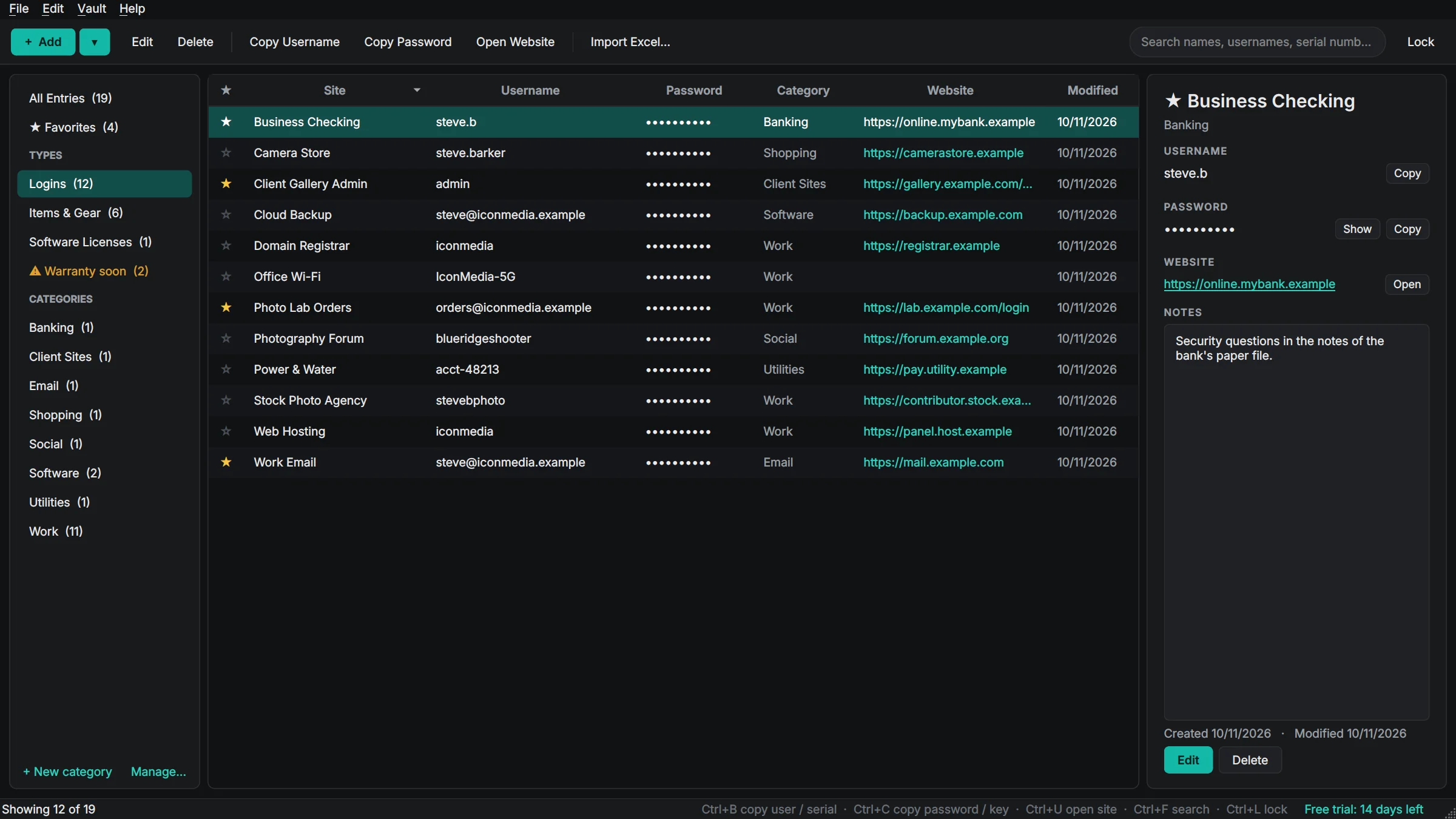
- Just start typing: VaultBox searches names, usernames, websites, notes, serial numbers and more as you type.
- Press Enter or the Down arrow to jump to the results, then Ctrl+B copies the username and Ctrl+C the password. Ctrl+U opens the website.
- The clipboard clears itself after 30 seconds, and copied passwords are kept out of Windows clipboard history.
- Click a password to show it for 20 seconds. Double-click a username or password to copy it.
5Record your gear
- Click the ▾ next to + Add and choose Item / Gear (or press Ctrl+Shift+N).
- Enter the name, make and model, serial number, purchase date and price, where you bought it, and when the warranty ends (the +1, +2 and +3 yr buttons count from the purchase date).
- Add Photos… adds pictures of the item and its serial number plate; Add Receipt… adds a photo or PDF of the receipt. They are encrypted inside your vault.
- Ctrl+B copies an item’s serial number. Double-click a photo to see it full size.
- When a warranty is about to end, Warranty soon appears in the sidebar and VaultBox mentions it when you unlock.

6Make an insurance report
- File → Items Report (PDF)… makes a report of every item with a photo, serial number, price, where it was bought and the warranty, with a total value.
- File → Export Items to CSV… gives the same list as a spreadsheet. Neither ever contains passwords or license keys.
- Open a category first (for example Camera Gear) to report only those items.
7Software license keys
- Choose Software License from the ▾ next to + Add. Keep the key, who it is licensed to, the number of seats, the purchase details and the download or account link.
- The key is hidden like a password. Ctrl+C copies it.
8Back up and stay safe
- VaultBox makes an encrypted automatic backup (twice a day at most) and keeps the last 20. Backups include your photos and receipts.
- File → Back Up Now… saves a copy to a USB drive or a cloud folder. It opens with the same master password.
- File → Restore from Backup… brings a backup back (a safety copy of your current vault is made first).
- VaultBox locks itself after 10 minutes without use (change it in Vault → Settings), and Ctrl+L locks it right away.
Keyboard shortcuts
| Ctrl+F | Search |
| Ctrl+B | Copy username (an item’s serial number) |
| Ctrl+C | Copy password (a license’s key) |
| Ctrl+U | Open the website |
| Ctrl+H | Show / hide password |
| Ctrl+N | Add entry |
| Ctrl+Shift+N | Add an item |
| Ctrl+D | Duplicate |
| Ctrl+I | Import from Excel |
| Ctrl+L | Lock |
| F1 | All shortcuts |
Questions
I forgot my master password.
Nobody can open the vault without it, not even us. Try the hint (shown after two wrong tries). If you remember an older master password, an older backup may open with it.
Is anything uploaded?
No. Your vault, photos and receipts stay on your PC. Only your license key is checked online, about once a day.
How do I move my vault to another PC?
File → Back Up Now… to a USB drive, install VaultBox on the other PC, create a vault, then File → Restore from Backup… One license covers 3 PCs.
Does uninstalling delete my vault?
No. Your vault, backups and license key stay in %LOCALAPPDATA%\Boxridge\VaultBox and open again if you reinstall.
Still stuck? Send us a message and the person who wrote the software will get back to you.