
How to use Boxridge Remote
Boxridge Remote lets you see and control another Windows PC from anywhere. Each PC gets a 9-digit ID. Share the ID and password to let someone in, or type another PC’s ID to connect to it.
1Install on both computers
- Click Download free 14-day trial on the Boxridge Remote page (or Download under My software after you buy) and run RemoteBox-Setup. It installs for your user only: no admin password needed. Windows 10 and 11 (64-bit).
- Install Boxridge Remote on every PC you want to reach, and on the PC you connect from.
2Free trial and your license key
- Every feature works for 14 days with no account and no credit card. The box at the bottom left of Boxridge Remote shows the days left.
- After the trial, other people can still connect to your PC for free. Only controlling another computer needs a license, so the PCs you only reach into never need one.
- When you buy, your key (BXR-XXXX-XXXX-XXXX-XXXX) is shown right after payment, emailed to you and kept under My software.
- In Boxridge Remote click the Free trial box at the bottom left, paste the key and click Activate. The PC must be online to activate.
- One license works on 3 PCs. To move it, click Remove from this PC in the same window, or remove the old PC under My software.
- Boxridge Remote checks the license with our server about once a day and keeps working for up to 30 days without the internet.
3Connect to another computer
- On the PC you want to control, open Boxridge Remote and read out Your ID and Password.
- On your PC, type that number into Partner ID and click Connect.
- Enter the password. Tick Remember this password to skip it next time.
- The other PC’s screen opens in a window. Your mouse and keyboard now control it.

4Use the session toolbar
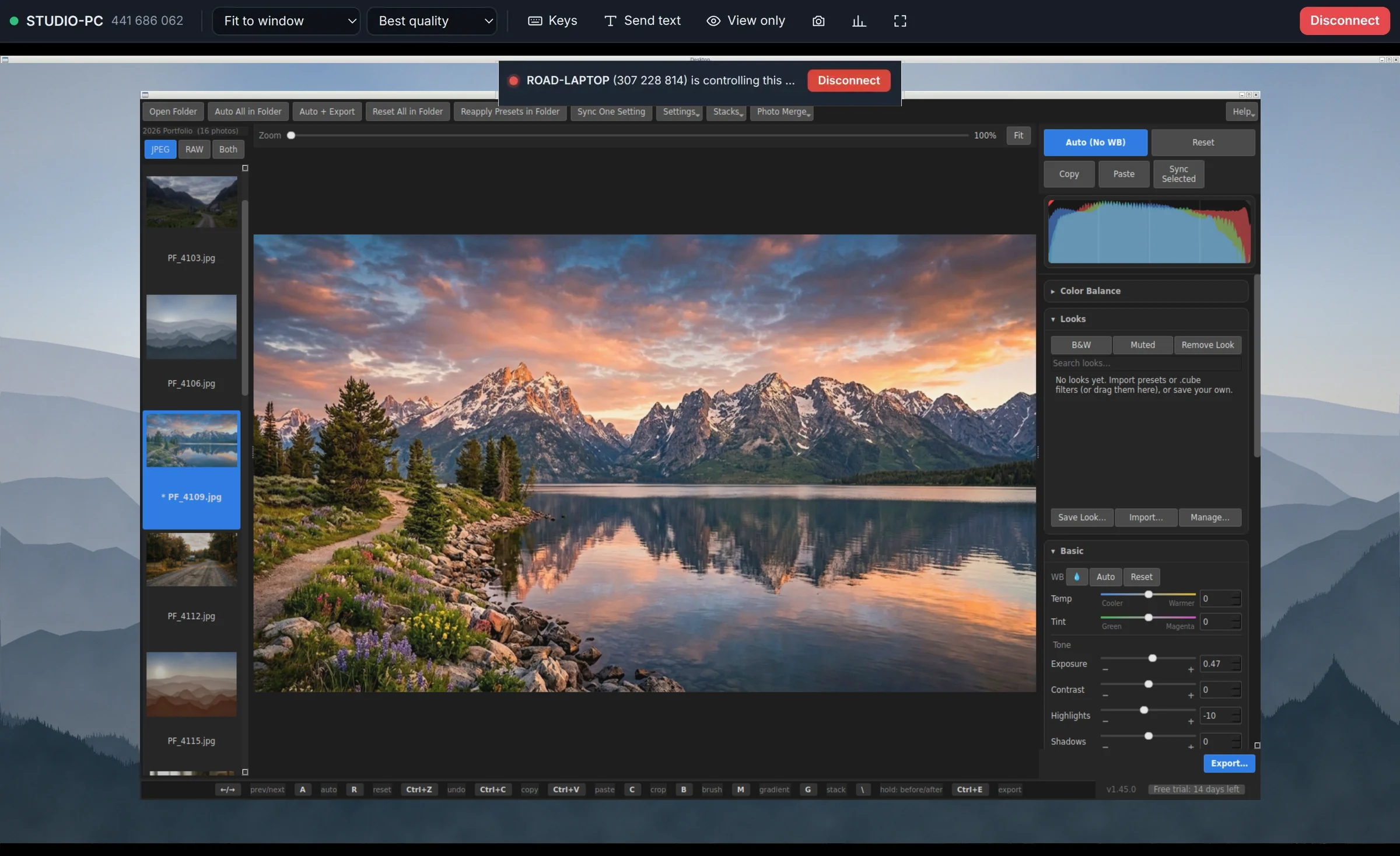
- Fit to window / Actual size: scale the remote screen.
- Quality: Best quality, Balanced, or Optimize speed for slow connections.
- Keys: send special keys such as Ctrl+Alt+Del or the Windows key.
- Send text: type or paste a block of text on the remote PC.
- View only: watch without sending your mouse and keyboard.
- Camera icon: save a screenshot. Graph icon: connection info. Full screen: F11.
- Disconnect ends the session. The other PC always shows a banner with who is connected and its own Disconnect button.
5Send and get files
- During a session, click Files in the toolbar.
- Send: click Send files… or Send a folder…, or drag files and folders from your PC onto the remote screen. They arrive in Downloads\Boxridge Remote on the other PC, folders with their subfolders.
- Get: under Get from, browse the other PC (Places: Desktop, Documents, Downloads, drives), click a file or folder (Ctrl+click for more) and click Get selected. They are saved in Downloads\Boxridge Remote on your PC.
- One progress bar above Transfers shows the whole batch: how many files are done, the size, the speed, time left, and the file going now (click it to jump to it in the list).
- Files already on the other PC are skipped (“Already there”). Sending a folder again fills in what is missing instead of making a second copy; a changed file arrives as “name (2)”.
- If the connection drops or you disconnect part way, the next session to that PC shows Unfinished from last time: click Resume to finish the rest.
- When everything is done, the PC you are working at shows a note and plays a short chime; the other PC shows a “Received” note. Turn these off in Settings, Clipboard and files.
- Every file is checked on arrival and only kept when it matches. To stop the other person sending you files, turn off File transfer in Settings, Clipboard and files.
6Unattended access to your own PCs
- On each of your PCs, open Settings and set a Permanent password.
- Turn on Start Boxridge Remote when I sign in to Windows so the PC is reachable after a restart.
- Leave Keep running in the system tray on, so closing the window doesn’t take it offline.
- From anywhere, pick the PC under Recent computers and click Connect.
7Updates
- Boxridge Remote checks for a new version about once a day and offers it with Update now, Later or Skip this version.
- Settings, Updates, Check for Updates checks right away. Update now downloads it, checks it is signed by Steve Barker, closes Remote (asking first if a session is open), installs it and opens Remote again.
- Your settings, saved computers and license stay as they are.
8Security settings
- Ask on this computer before anyone can connect: someone at the PC must click Allow (auto-denied after 30 seconds).
- Random password: shows a new password each time Boxridge Remote starts, 6 to 12 characters.
- Clipboard: share copied text between the two computers during a session, or turn it off.
- Connection: Automatic uses a direct connection when possible and an encrypted relay when not. Always use relay helps on strict networks.
Keyboard shortcuts
| F11 | Full screen |
| Keys menu | Ctrl+Alt+Del, Windows key and other special keys |
Questions
It says the PC is offline.
Make sure Boxridge Remote is running on that PC (look for it in the system tray) and that the PC is awake and online.
The picture is blurry or laggy.
Choose Optimize speed on a slow connection, or Best quality on a fast one. Connection info shows whether you are direct or relayed.
Can I connect from a phone hotspot?
Yes. When a direct connection is blocked, the session goes through the encrypted relay automatically.
The Files panel says “Waiting for the connection”.
Both PCs need Boxridge Remote 1.1.0 or newer for file transfer. Update the older one (Settings, Updates, or download it again from your account) and connect again.
Where do the files go?
Into Downloads\Boxridge Remote on the PC that receives them. Open received files in the Files panel opens that folder.
Still stuck? Send us a message and the person who wrote the software will get back to you.