Guides › Boxridge Find

How to use Boxridge Find
Boxridge Find builds its own index of the folders and drives you add, so every search answers as you type. It reads photo metadata and the text inside documents, and it never changes your files.
1Install, try it free, and enter your key
- Click Download free 14-day trial on the Boxridge Find page and run FindBox-Setup. It installs for your user only: no admin password and no Windows prompt. Windows 10 and 11 (64-bit).
- Every feature works for 14 days with no account and no credit card. After that searching, browsing, previewing and opening files stay free; Copy to Folder, Move to Folder, Export to CSV and Saved Searches ask for a license key.
- When you buy, your license key is shown right after payment, emailed to you and kept in your account. In Boxridge Find open Menu → License, paste the whole block from -----BEGIN to END----- (or open the .key file) and click Activate. The PC needs the internet that first time; one license covers 3 of your PCs, and Remove License in the app (or My software on this site) frees a PC. After that it works offline and never expires.
2Add your folders and drives
- Click Add Folder and pick a folder or a whole drive. Add as many as you like: shoots, documents, external drives.
- Boxridge Find reads everything once (a very large drive takes a few minutes) and you can search the whole time; results fill in as files are read.
- After that it watches your folders and only re-reads files that changed.
- Files on an external drive stay searchable when it is unplugged, marked offline until it is plugged back in.
3Search
- Just type: names, folders, keywords, captions, people, bib numbers, camera and lens, and the words inside Word, Excel, PowerPoint, PDF and text files all match.
- Every word must match: "412 climb" finds rider 412 on the climb. Put a phrase in quotes, use OR for either word, and a minus sign to leave a word out.
- Search one field with keyword:, people:, caption:, camera:, lens:, city:, event: or text:, for example people:jane.
- Dates use US format: date:09/27/2026, date:10/2026, year:2025, or date:last7. Also rating:>=4, iso:>3200, size:>25mb and type:raw.
- Press F1 for all the search tips.

4Narrow the results
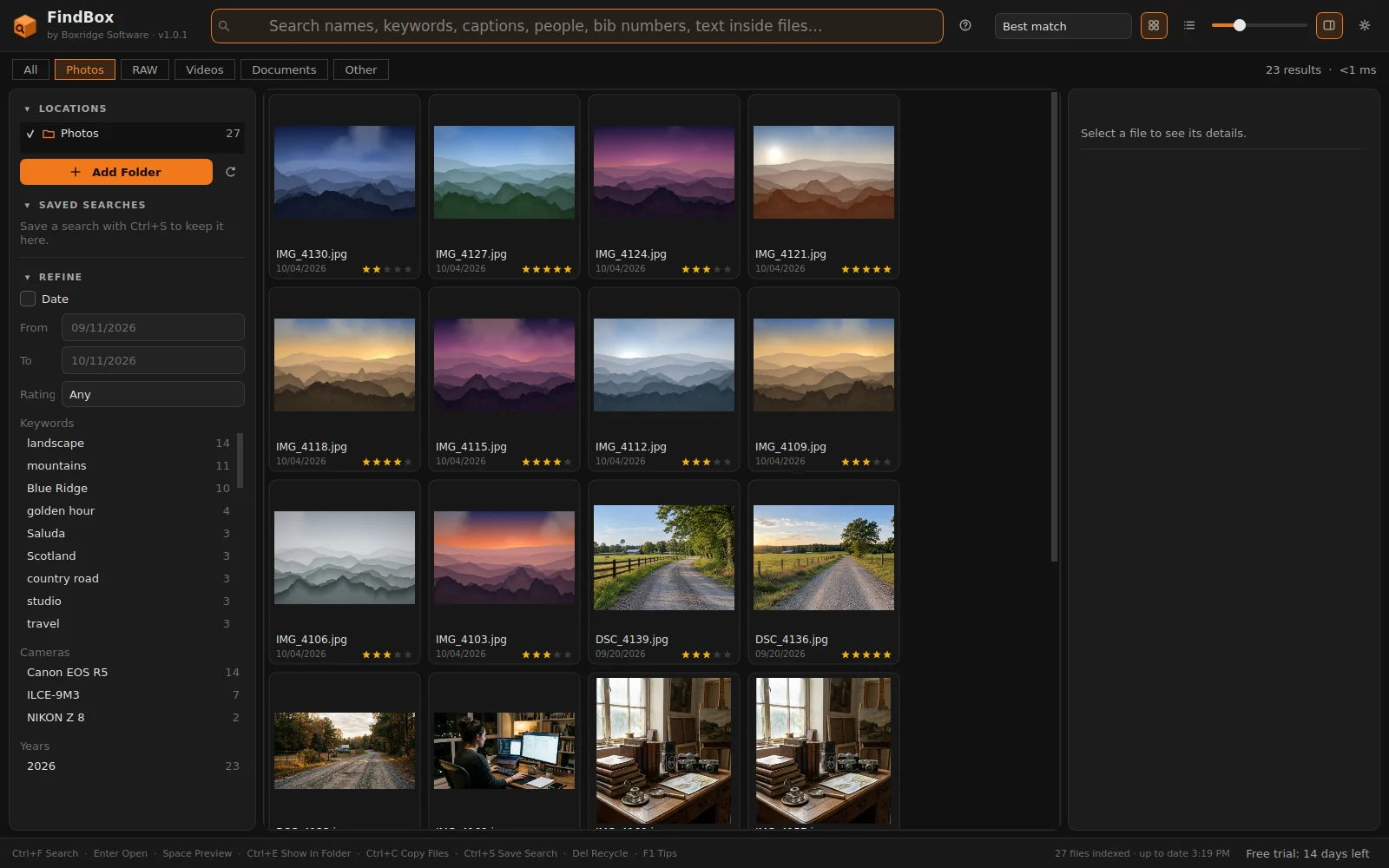
- The buttons above the results show only Photos, RAW, Videos or Documents.
- Under Refine, click a keyword, a person, a camera or a year to filter by it, or set a date range and a minimum star rating.
- Active filters show as chips above the results; click × on a chip or Clear all to remove them.
- Sort by best match, date, name or size, switch between the thumbnail grid and the sortable list, and change the thumbnail size with the slider.
5Work with the files you found
- Click a file to see its preview and every bit of its metadata on the right. Space opens a full-screen Quick Look preview.
- Enter opens a file, Ctrl+E shows it in its folder, Ctrl+C copies the files, and you can drag files straight into any app.
- Copy to Folder or Move to Folder sends a whole set somewhere else without ever overwriting a file that is already there.
- Export to CSV saves the list of results, and Ctrl+S saves the search so it is one click away next time.
- Del sends files to the Recycle Bin, so a mistake can be undone.

Keyboard shortcuts
| Ctrl+F | Search box |
| Enter | Open |
| Space | Quick Look preview |
| Ctrl+E | Show in folder |
| Ctrl+C | Copy files |
| Ctrl+S | Save the search |
| Del | Send to Recycle Bin |
| F1 | Search tips |
Questions
A file I know is there doesn’t show up.
Check that its folder (or drive) is added under Locations and ticked. Hidden and system folders are skipped on purpose; you can change what is skipped in Settings.
Does it change my files?
No. Boxridge Find only reads files. The index, thumbnails and settings live in %LOCALAPPDATA%\Boxridge\FindBox and are kept if you uninstall.
Big PDFs are only found by name.
Documents over 20 MB are indexed by name and properties only, and PDF text is read from the first 60 pages. You can raise the size limit in Settings.
Still stuck? Send us a message and the person who wrote the software will get back to you.