Guides › Boxridge Cull

How to use Boxridge Cull
Boxridge Cull is for the first pass after a shoot: fly through the photos with the keyboard, keep the good ones, and send only your picks on to editing.
1Install, try it free, and enter your key
- Click Download free 14-day trial on the Boxridge Cull page and run PhotoCull-Setup. It installs for your user only: no admin password and no Windows prompt. Windows 10 and 11 (64-bit).
- Every feature works for 14 days with no account and no credit card. The pill next to the version number shows the days left. After that PhotoCull still opens, culls, rates and labels, and Export Picks asks for a license key.
- When you buy, your license key is shown right after payment, emailed to you and kept in your account. In Boxridge Cull click the Trial pill next to the version number (or Enter License Key), paste the whole block from -----BEGIN to END----- (or open the .key file) and click Activate. The PC needs the internet that first time; one license covers 3 of your PCs, and Remove License in the app (or My software on this site) frees a PC. After that it works offline and never expires.
2Open your photos
- Click Open Folder, or Import from Card to copy straight from the memory card.
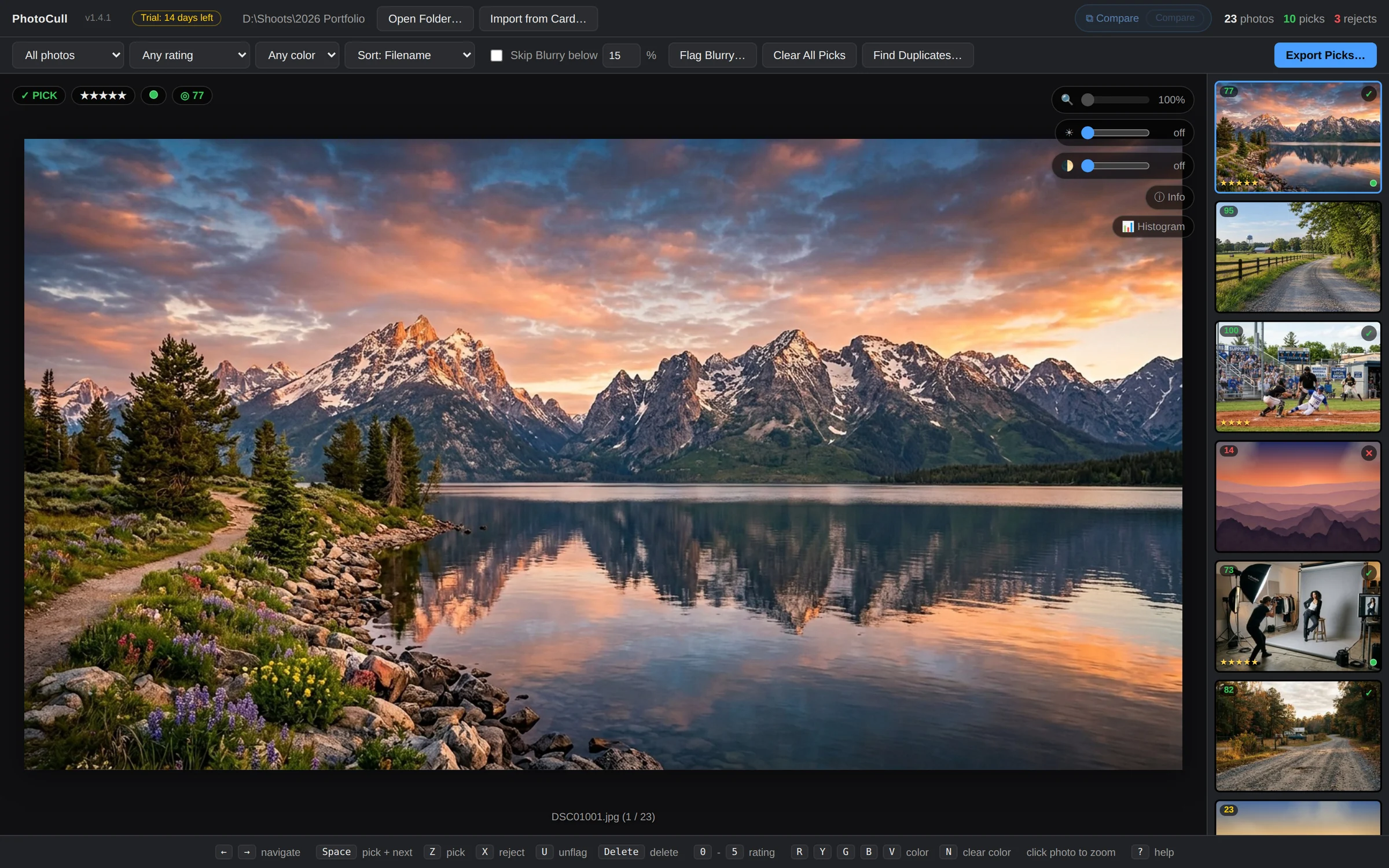
- The filmstrip on the right shows every photo. The number on each is its sharpness score.
3Pick, reject and rate
- Press Space to pick and jump to the next photo. Z picks, X rejects, U clears the flag.
- Press 0 to 5 to set stars, and R, Y, G, B or V for a color label (N clears it).
- Use ← and → to move. Click the photo to zoom in and check focus.
- The counts at the top right update as you go: photos, picks and rejects.
4Let it find the problems
- Flag Blurry marks soft frames for you. Skip Blurry below a percentage hides them while you cull.
- Find Duplicates finds the same shot copied in twice, so you can keep just one.
- Info shows camera, lens and exposure. Histogram shows the tones, with Auto Exposure to preview a brighter or darker version.
- Compare lets you look at the photos you select side by side.

5Export your picks
- Filter with All photos / Picks only, Any rating and Any color.
- Click Export Picks… to copy your keepers to a folder, with optional renaming.
Keyboard shortcuts
| ← / → | Navigate |
| Space | Pick and next |
| Z | Pick |
| X | Reject |
| U | Unflag |
| 0–5 | Star rating |
| R Y G B V | Color label |
| N | Clear color |
| Delete | Delete photo |
| ? | Help |
Questions
Does it change my files?
No. Picks, ratings and labels are kept in a small .photocull folder next to your photos, plus .xmp sidecars other photo apps can read. Delete sends a photo to the Recycle Bin.
Does it read RAW files?
Yes, it previews common RAW formats as well as JPEGs.
Still stuck? Send us a message and the person who wrote the software will get back to you.