Guides › CopyBox

How to use CopyBox
CopyBox moves big folders much faster than dragging them in File Explorer, because it copies many files at once, and then checks that every file arrived.
1Install, try it free, and enter your key
- Click Download free 14-day trial on the CopyBox page and run CopyBox-Setup. It installs for your user only: no admin password and no Windows prompt. Windows 10 and 11 (64-bit).
- Every feature works for 14 days with no account and no credit card. After that Preview, Check Copy and the free-space check stay free, and Start Copy asks for a license key.
- When you buy, your license key is shown right after payment, emailed to you and kept in your account. In CopyBox open Help → License…, paste the whole block from -----BEGIN to END----- (or open the .key file) and click Activate. The PC needs the internet that first time; one license covers 3 of your PCs, and Remove License in the app (or My software on this site) frees a PC. After that it works offline and never expires.
2Copy a card or folder
- Click Card or Drive and pick the memory card, or click Choose Folder… (or drag a folder onto the window). CopyBox counts the files and total size.
- Pick the destination Drive. Every drive is listed with its label and free space. Choose a folder… lets you pick any folder instead.
- The New folder box is filled in for you: the folder’s own name, or for a whole card its label and today’s date. Change it to the event name if you like, or clear it to copy straight in.
- Check the Copies into line, then click Start Copy.
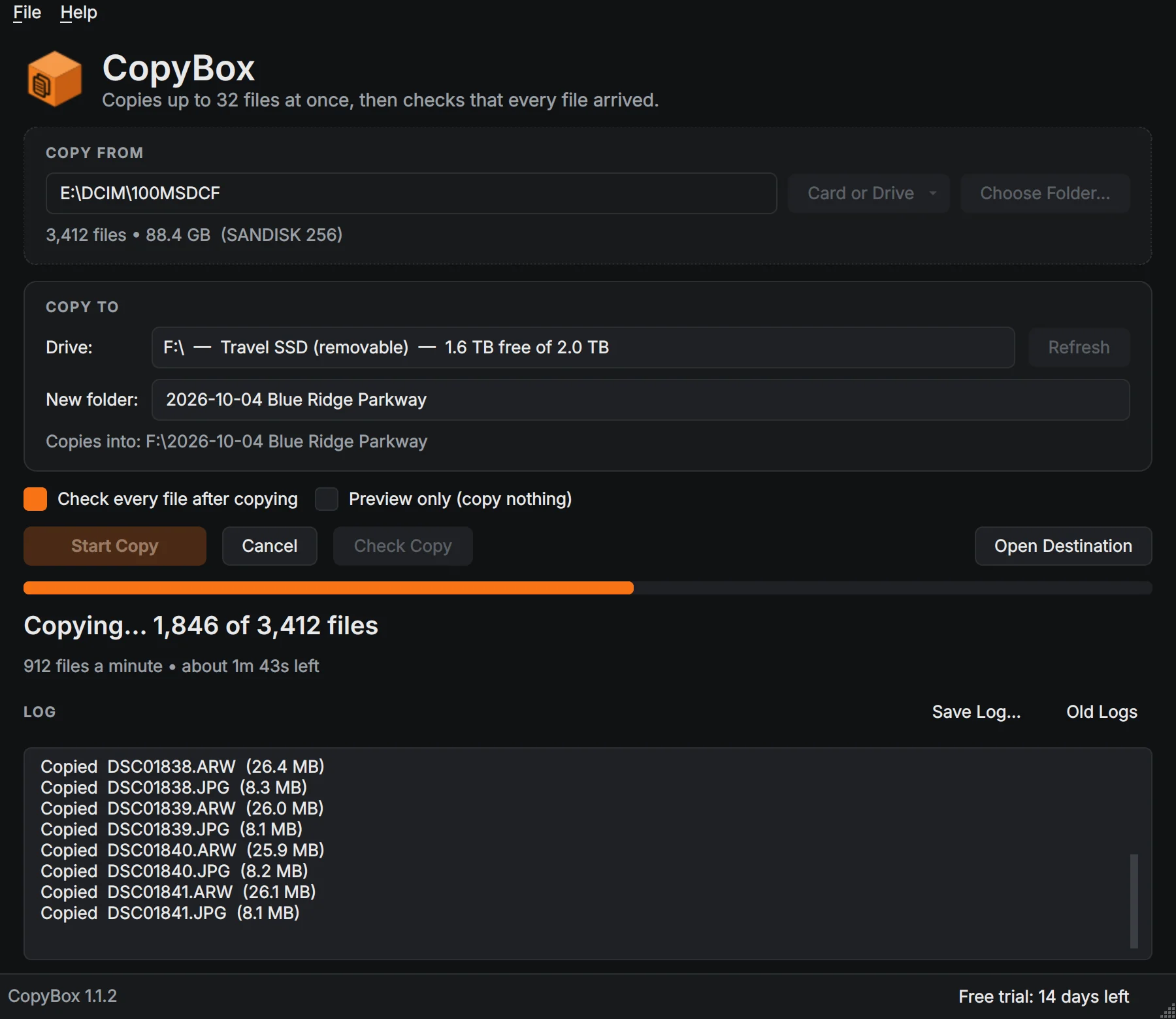
3While it copies
- The bar shows files copied, files per minute and time remaining. Your PC won’t go to sleep until it finishes.
- The Log lists every file. Cancel stops the copy; files already copied stay, and Start Copy again finishes the rest.
- You get a warning before you start if the destination doesn’t have enough room.
4Check the copy
- With Check every file after copying ticked (the default), CopyBox confirms every file is on the destination at the same size as the original when the copy finishes.
- Anything missing or short is listed by name in the log. Press Start Copy again and only those files are copied.
- Check Copy runs the same check any time, for example before you format the card.

5Preview first
- Tick Preview only to list what would be copied without copying anything.
- Every copy and preview log is saved: Old Logs opens them, Save Log… saves the current one anywhere.
Keyboard shortcuts
| Ctrl+O | Choose a folder to copy |
| Ctrl+D | Choose a destination folder |
| F1 | This guide |
Questions
Will it change anything on my card?
No. It only reads the source and writes to the destination you choose. It never deletes files.
What if a file fails?
It retries automatically, the log shows exactly which file had a problem, and the check after the copy names it.
Why is the folder name the card’s label and a date?
So each card you offload gets its own folder. Type any name you like instead.
Still stuck? Send us a message and the person who wrote the software will get back to you.