
How to use CleanBox
CleanBox runs a careful PC tune-up in the right order with one click. It shows each step working live and keeps a report of every run.
1Install, try it free, and enter your key
- Click Download free 14-day trial on the CleanBox page and run CleanBox-Setup. It installs for your user only: no admin password and no Windows prompt. Windows 10 and 11 (64-bit).
- Every feature works for 14 days with no account and no credit card. After that your History and reports stay available, and running maintenance and scheduled runs ask for a license key.
- When you buy, your license key is shown right after payment, emailed to you and kept in your account. In CleanBox open Help → Enter license key..., paste the whole block from -----BEGIN to END----- (or open the .key file) and click Activate. The PC needs the internet that first time; one license covers 3 of your PCs, and Remove License in the app (or My software on this site) frees a PC. After that it works offline and never expires.
2Run a cleanup
- Open CleanBox and click Yes when Windows asks for administrator permission: the repair steps need it.
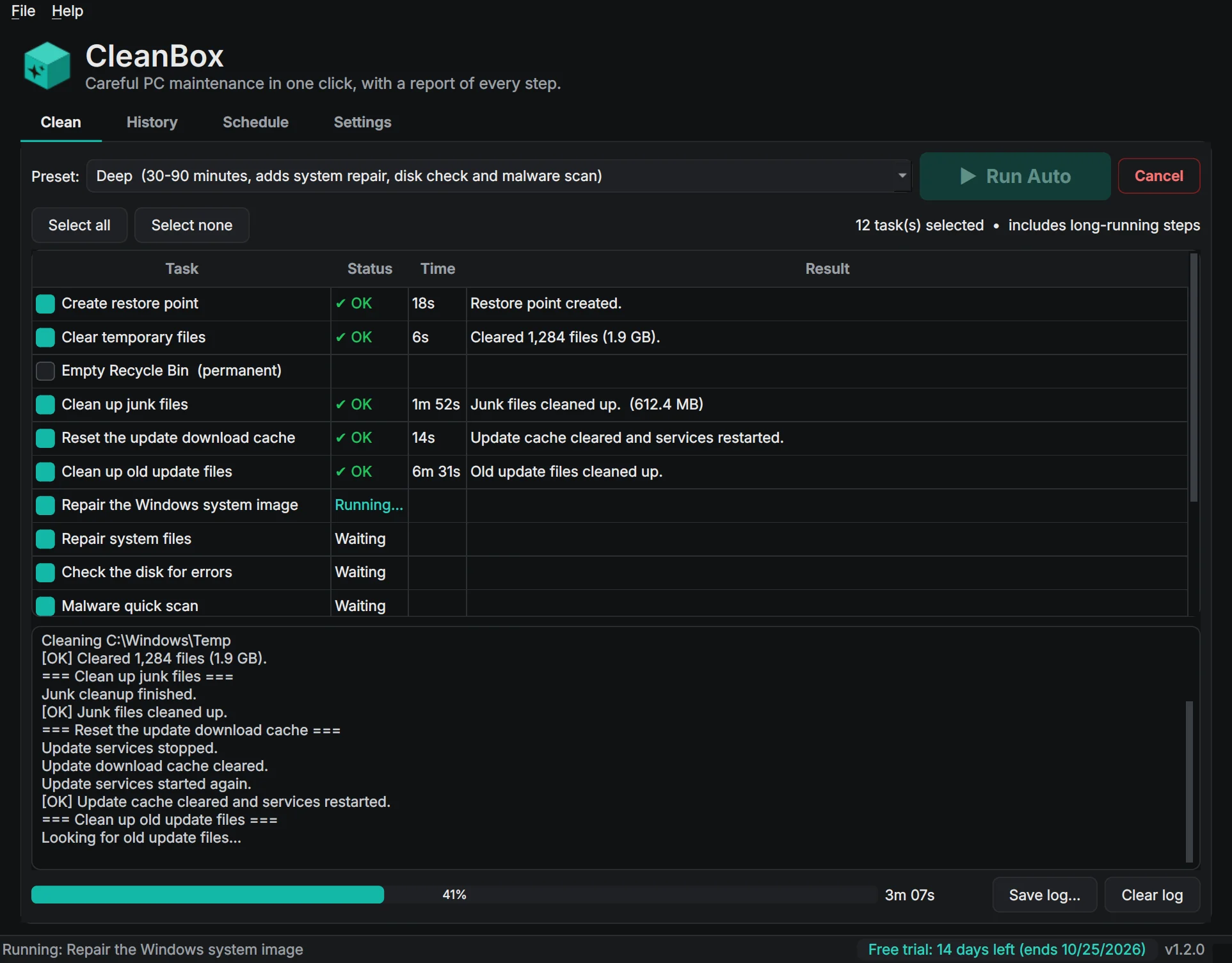
- Pick a preset: Quick (a few minutes) for routine cleanup, or Deep, which adds the system file repair, the disk check and a malware scan and can take 30 minutes or more.
- Click Run Auto. CleanBox makes a restore point first, then runs each step, showing its progress live.
- You can keep working while it runs. Cancel stops cleanly, and Windows Update services are always restarted.
3Choose your own steps
- Tick or untick any step in the list; the preset switches to Custom and remembers your choice.
- Empty Recycle Bin is never ticked by a preset because it deletes for good; CleanBox asks before it runs.
- Settings sets how old a temporary file must be before it is removed (1 day by default), and whether a run should stop if Windows can’t make a restore point.
4Read the report
- When the run finishes you see the space recovered, free space before and after, and each step’s result: OK, Warning or Failed, in plain English.
- Every run is kept in History. Select one to read it, export it as PDF or HTML, or delete it.
- If a step failed, Help → Export diagnostics saves a file you can send to support. It leaves out personal details and your license key.

5Schedule regular cleanups
- On the Schedule tab choose weekly, monthly or when the PC is idle, the time, and Quick or Deep, then click Save Schedule.
- Scheduled runs happen quietly in the background and show up in History.
- Remove Schedule turns it off. Uninstalling CleanBox removes it too.
Questions
Does CleanBox delete my files?
It removes old temporary files and the junk Windows marks as safe to clean up. It never touches Downloads or your documents, and only empties the Recycle Bin if you tick that step.
A step says Warning. Is something wrong?
Usually not. A warning means the step finished but has something worth knowing, for example the disk check found an issue that needs a repair at the next restart, or Windows skipped the restore point because one was made recently. The report explains each one.
Does uninstalling remove my History?
No. History, settings and your license key stay in %APPDATA%\CleanBox in case you install CleanBox again. The scheduled run is removed.
Still stuck? Send us a message and the person who wrote the software will get back to you.